
- PIN Location Update on CRM: New Contact, Existing Contact
- Back Office Training materials tracker: Click Here
- Inspection Guidelines: Click Here
- Zuper Dashboard: Click Here
- Maintenance Tickets Flow: Click Here
- Surface Disinfection: Click Here, Calculator Link: Click Here
- Incentive Challenges Form: Click Here
- Standard Response Time and Follow Up Matrix: Click Here
- AC Inspection in Non-Standard Areas: Click Here
- New Quality Parameters: Click Here
- Calculators Link : Click Here
Treatment SOP files: Click Here ⚠️Method Statement should not be shared with clients unless approved by your supervisior
Referral Leads Process: Click Here
Regional Live Services and Frequencies: Click Here
7 must wins: Click Here
UAE Inspector Matrix: Click Here
THH Shop Links to be sent to customers - Click Here
THH Certifications - Click Here
THH MSDS Treatment Products - Click Here
NOCs - Click Here
Zoho Contracts - Click Here, Click Here
Infographics for META- Click Here
Tabby Process - Click Here
Waiting List Sheet - Click Here
AC Chat Flow - Click Here
- Online Booking FAQs - Click Here, Click Here
Zuper/Z-com refrences - Wellness Consultants, Estimation & Validation
META Process - Click Here
Price Increase FAQs - Click Here
Estimation Process for Inspection Jobs- Click Here
VIP & Influencer Lead Handling Process - Click Here
Updated Treatment Videos: Click Here
Zoning Map Link: Click Here
Client Related Files: Click Here
Treatment Menu: Click Here
- Commercial Verified Partner Services (3.0): Click Here
Vouchers and Discounts THH 2024-2025: Click Here
2025 New Contract Flow : Click Here, Click Here
Leather Cleaning - Click Here
Pool Maintenance - Click Here
Marble Treatment: Click Here
Maintenance Treatment - Click Here
Mold Testing - Calculator Click Here
Process Update Tracker: Click Here
Shorten URL link: Click Here
GelAir Presentation: Click Here
Zoho Desk Ticketing
54.1- How To Create A Ticket
54.2- ZOHO Desk Internal Tickets Reference
54.3- VideosGeneral Bookings Notes:
- Booking & Scheduling Rules
- Where to book: You can only book jobs in open areas. Do not book jobs in communities (closed gated areas).- What NOT to book: Do not book inspections, pest control (PC) call-outs, or follow-up visits.- Payment: The client must pay 100% down payment (pay everything before the job).
- 30-Minute Window: Tell clients that the team will arrive within a 30-minute window (for example: between 2:00 and 2:30).- Refund Time: For all refunds, tell the client it takes 3 to 5 business days from the cancellation date. The exact time depends on their bank.
- In CRM, ZCOM, and Zuper: write the address from small to big details. This helps the team find the location on Google Maps:
[Apartment/Villa Number, Street, Area, City] - PIN Location: you must type the pin location as coordinates (numbers) in the booking notes. Do not paste a website link (URL).
- System & CRM Rules
Deals in CRM
- One Deal Only: Every job booked on Zcom or Zuper must show under only one deal in the CRM.
- Free complimentary Inspections: Do not create a new deal for a free (complimentary) inspection. Add it as an "interested service" inside the same existing deal.
Systems General Guidelines
- Travel Time: In ZCOM and Zuper, if a service booking is less than 2 hours long, you must add a line item called "Travel Time".Unpaid Money (Outstanding Receivables)
- Zuper Quote UID: When you book a job from Zuper, you must copy and paste the quote UID into the system during the job creation step.
- Laura Muniz Referrals: If a client was referred by Laura Muniz, the system automatically emails her the details. Do not use Auto Deals for these clients until we tell you otherwise.
- Vouchers: When you attach a voucher file in the CRM, upload it to the Contact profile, NOT the Deal profile. Name the file like this: Voucher Code__Job Number.
- Check First: Before you finish any booking, look for the Red Bell and Outstanding Receivables in the CRM.
- What to do: If the client has outstanding payment, open a ZOHO Desk ticket under “Collection Of Outstanding Receivables”. The Finance team will handle it within 1 hour. Do not book the job until Finance tells you the payment is clear.
Service Fees & Taxes
- Service Fee: The service fee is 2.75%. It is added automatically in Zoho Quotes, but you must type it in manually as a line item in ZCOM and Zuper.
- Rounding Numbers: On Zcom (via Zoho CRM), always round up the service fee to the nearest whole number (for example: change 4.81 to 5).
- CRM Deal Amount: Type the deal amount after discounts, but before adding VAT and Service Fees (SC).
- ZCOM Tax Display: ZCOM shows a 7% tax on the screen for the app to work. Ignore this 7% display. It does not change the client's actual price. The real tax is still 5%. You must still add the 2.75% service fee manually.
AC Cleaning & Access Panel Prices
AC Flat Prices: all AC Prices have been streamlined to ensure Villas and Apartments have same prices and the prices across both options premium and Full cleaning are flat linear prices.
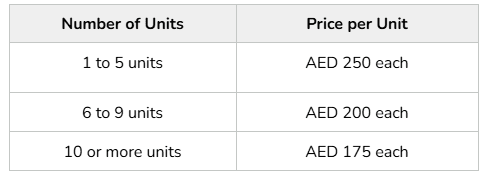
Access Panel Prices: Access panels use a tiered pricing system (the price drops if they buy more units). ZOHO Quote Creator, Zuper, and the AC Calculator already have these numbers:
- Special Scenarios & Offers
Urban Company & Big Leads
Palaces: Palaces are corporate leads. Do not handle them. Transfer them directly to the Business Development (BD) Team.
Urban Company Prices: If a client asks why Urban Company is cheaper, explain that we do not charge our 2.75% service fee on the Urban Company platform. This is why their price is slightly lower.
Discounts & Products
- Old/Past Discounts: Do not give a client a large discount just because they had it in the past. Explain that it was a one-time promotion. Try to sell our current packages and standard discounts. If they are unhappy, send them to your supervisor.
- Gelair & Biogents Products: If a deal includes these products and the client wants a percentage (%) discount, ask your supervisor to change it to a fixed value discount (like AED 50 off). This stops the system from discounting physical products.
Burj Daman Offer (Until 30/12/2025):
The client's address must be in Burj Daman.
They get cheaper AC cleaning (Use Code: BDAMAN5) + 1 free mattress dry cleaning.
Booking rule: Book the free mattress cleaning as a zero-value (AED 0) line item in a separate deal.
THH Certificate: Send this to the client only if they ask for it. Always use the newest version from the official link. Here
- Automatic Actions & Field Rules
Automation
- Automatic Refund Tickets: When a job is canceled on Zuper, the system automatically creates a ticket for the Finance team to send a refund. You do not need to create a ticket manually.
- Chat Feedback Surveys: The customer satisfaction (C-SAT) survey sends automatically after every chat ends.
New Clients in the Field
- If a Team Leader (TL) finds a new client while working on-site, the TL will call the Validator with the client's name and mobile number.
- Validator Action:
- Create a new client profile in Zoho CRM.
- Book an inspection for that TL during the exact same time slot they are already on-site. This allows the TL to fill out the inspection checklist in Zuper right away.
50. New Guidlines For Chat Handling: Effective 6/12/2025
General Guidelines
Do not leave chats in Active status at the end of your shift unless approved by your Supervisor.
Do not inform clients about internal chat transfers, unless they are being moved to a different team or they directly request a specific agent.
The deal belongs to the agent who demonstrates the highest level of effort and contribution toward it.
A client is considered non-responsive if they have not interacted for more than 2 hours.
The last hour or 30 minutes of your shift should be reserved for completing pending work and calling unresponsive clients.
Once client inquiry is resolved (Booking, complaint, appointment confirmation/rescheduling, etc), check if any furthur assiatnce is needed, thank the client and close the chat, don't leave it open.
All contract upsells done by the team leaders should be routed to the Validation Team for processing.
All contract cross-sellsdone by the team leaders should be routed to the Estimation Team for processing.
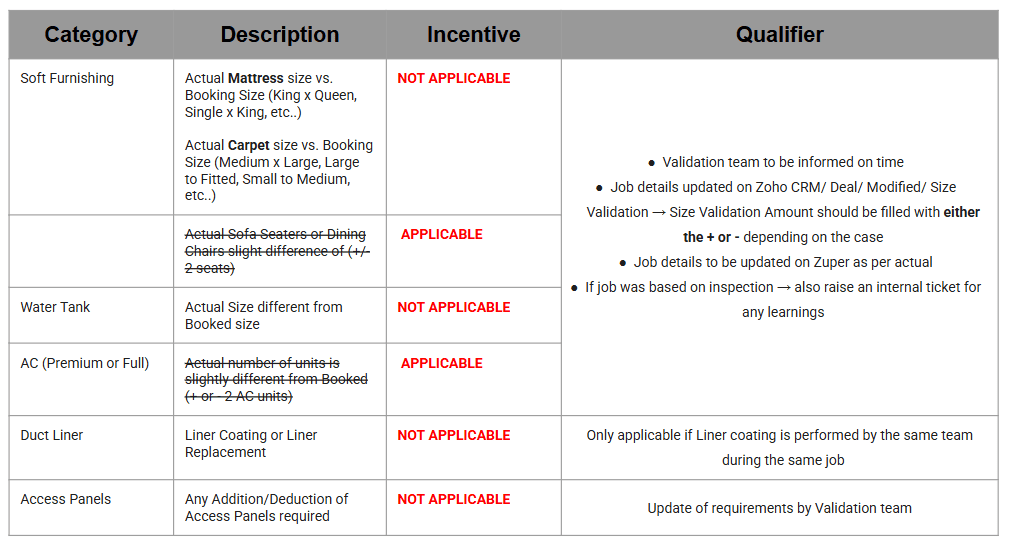
3. Validation Process Material: Click Here
52. Format to be put in the booking notes:
1-Client’s Special Requests / Concerns: Any specific requests from the client that must be prioritized (e.g., start with kitchen).
2- Inspector Notes: Any relevant notes passed on by the inspector that need to be conveyed to the team leader or you need to pass to inspector or team leader like compelementary Inspections vs requested ones.
3- Client Will Be on Premises?(Yes / No)
4- Person In Charge: Name and contact of the person who will be responsible or available on-site.
5- Total Job (or Contract) Net Amount: Final amount after discount, including VAT and service charges.
6- Total Down-Payment Paid Amount: Put how much client has paid already
7- Discount Code: To be filled in if a discount has been applied.
8- Vouchers to be Collected?(Yes / No) Applicable for physical vouchers.
9- Booked By: Name of the person who created the booking.
Note that If any of the above is not appliacble put it as NA
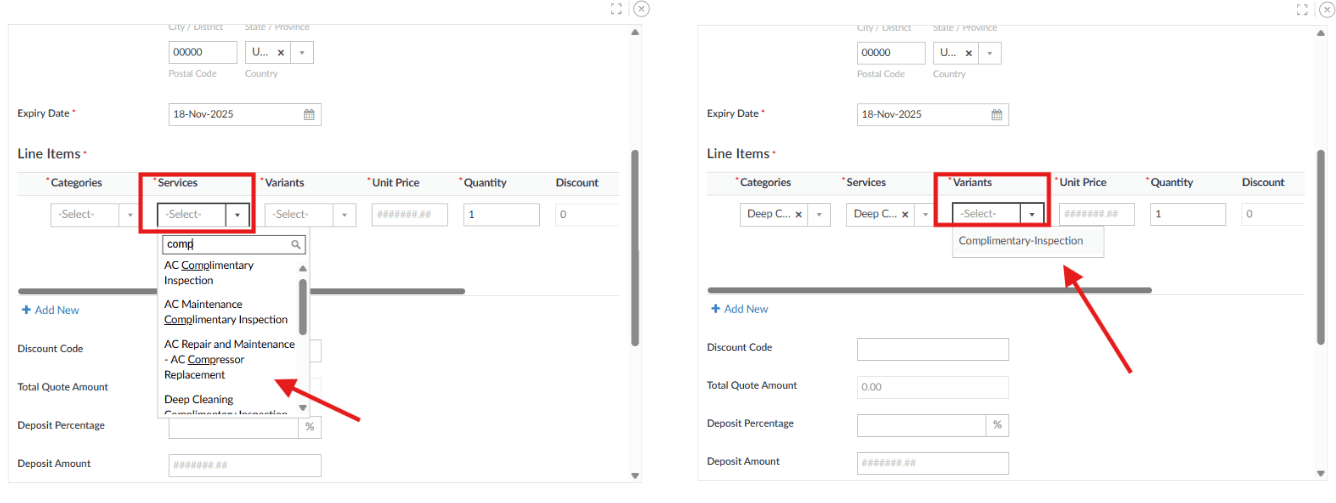
This restructuring helps ensure that Complimentary Inspections remain hidden from the online booking platform while maintaining proper tracking internally.
New line items have been created as follows:
- AC Maintenance Complimentary Inspection
- Water Tank Complimentary Inspection
- Deep Cleaning Complimentary Inspection
- Mold Complimentary Inspection
- AC Complimentary Inspection
- Pest Control Complimentary Inspection
- Complimentary Inspection
1. Request 100% Prepayment
After the client confirms the slot and price:
“I will send you the quote with a payment link in just a moment. Once the payment is completed, the slot will be secured. If you are using an Apple device, please ensure pop-ups are enabled in your browser to avoid any payment issues.”
2. Handle the First Objection
If the client refuses 100% prepayment:
“I understand. We require prepayment because many clients are requesting the available slots, and priority is given to clients who complete the payment to secure their booking. Would you like to proceed?”
If the client still refuses:
“Let me check what I can do for you. May I place the call on hold for two minutes?”
Place the call on a fake hold. No supervisor approval is required at this stage.
3. Offer 50% Prepayment
After the hold:
“Thank you for your patience. I managed to arrange a special option for you. You can secure the booking by paying only 50% now, and the remaining balance can be paid on the day of the service. Would you like to proceed?”
4. If the Client Still Refuses
Inform the client:
“I understand. Let me check with my supervisor whether we can make a further exception for your booking. May I place the call on hold for another two minutes?”
Contact your supervisor and obtain approval before proceeding with 0% prepayment.
After receiving approval:
“Thank you for your patience. I received approval to proceed without prepayment. Please ensure the full payment is completed on the day of the service and provide us with the name and contact details of the person who will make the payment.”
Process Explainer Video
Important Reminders
- Follow the sequence: 100% → Fake Hold → 50% → Supervisor Approval → 0%.
- Never offer 50% before attempting to secure 100% payment.
- Never proceed with 0% prepayment without supervisor approval.
- Accept the quote on the client’s behalf in Zuper when applicable.
- Copy the payment link into the call log description for easy follow-up.
If the clients mentioned that a third party will be making the payment, don't proceed with 0% , ensure that 100% prepayment is collected.